How to Program a Smart Thermostat
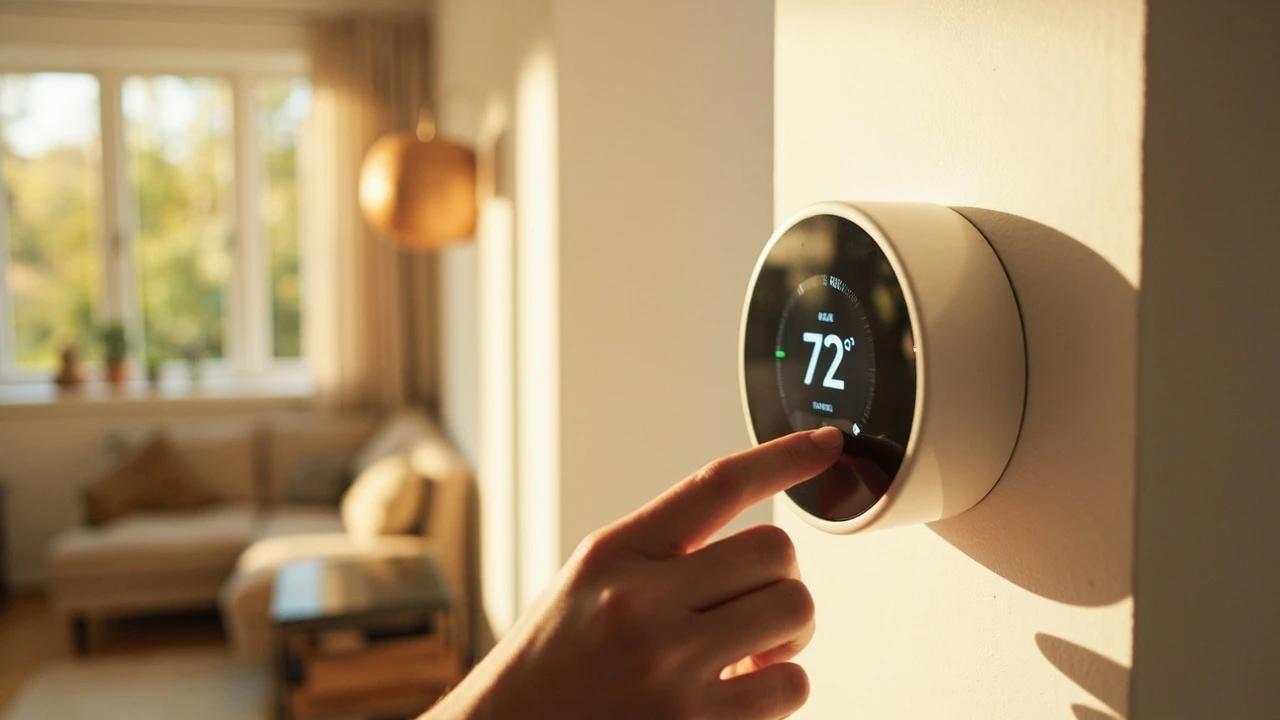

A properly programmed smart thermostat can cut your heating and cooling bills by 8-10% — roughly $50-150 per year — without sacrificing comfort. Most homeowners never get past the default settings, leaving serious savings on the table. This guide walks you through the full setup: Wi-Fi connection, schedule creation, and energy-saving features like geofencing and eco mode.
What You'll Need
🛠 Tools
📦 Materials
Step-by-Step Instructions
Download the App and Create an Account
Search your app store for the thermostat manufacturer's official app — Nest (Google Home), ecobee, Honeywell Home, or Sensi are the most common. Download and install it, then create an account with your email address. If your thermostat came with a QR code on the quick-start card, scan it now to pair the device. Most apps walk you through a guided setup wizard — follow it through the initial prompts but don't skip ahead, since the app needs to identify your specific thermostat model and HVAC system type.
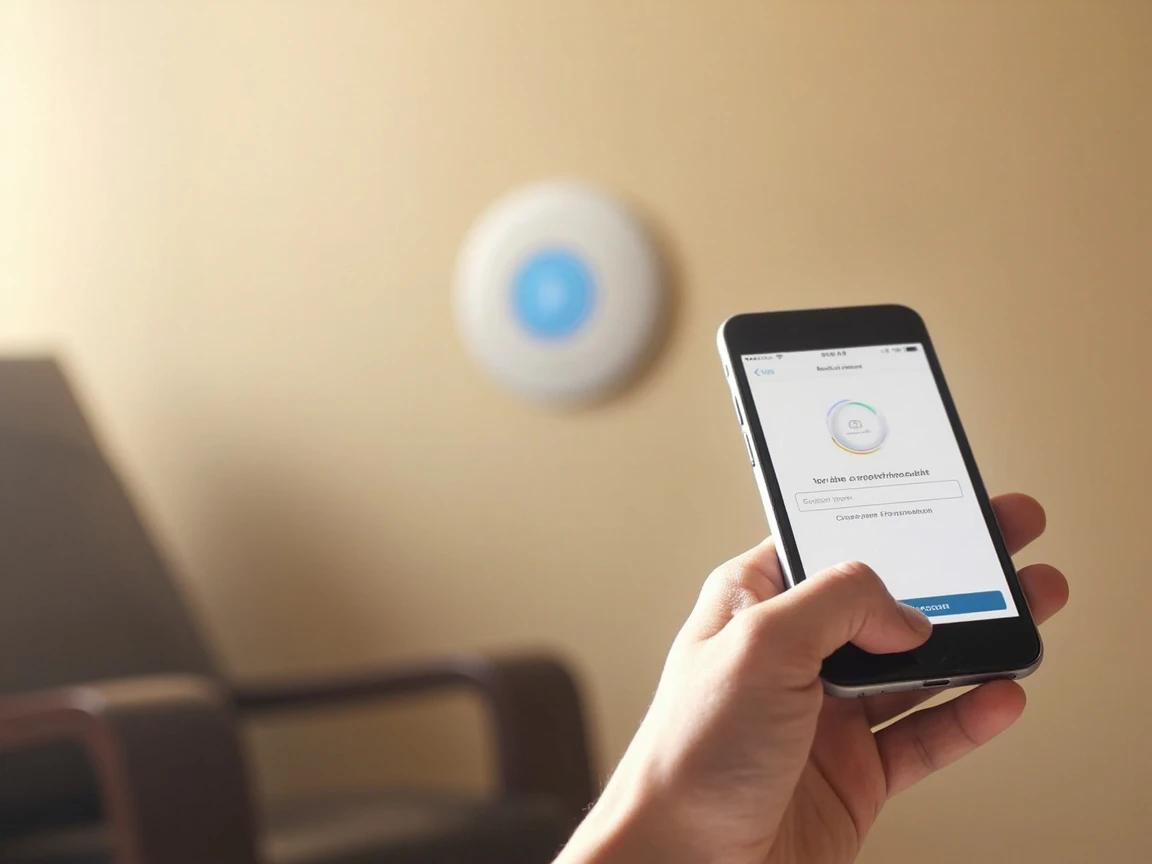
If you have multiple people in your household, have everyone download the app and join the same "home" account. This lets geofencing track when the last person leaves and the first person arrives — maximizing energy savings without anyone coming home to a cold house.
Connect the Thermostat to Your Wi-Fi Network
On the thermostat itself (or through the app), navigate to Settings → Network or Wi-Fi. Select your home network from the list and enter your password. The thermostat will take 30-60 seconds to connect. Once connected, it will check for and install any available firmware updates — let this finish before proceeding, as updates often include critical bug fixes and new energy-saving features. If your thermostat fails to connect, move your Wi-Fi router closer temporarily or check whether your router broadcasts a separate 2.4 GHz network, since most smart thermostats do not support 5 GHz Wi-Fi.
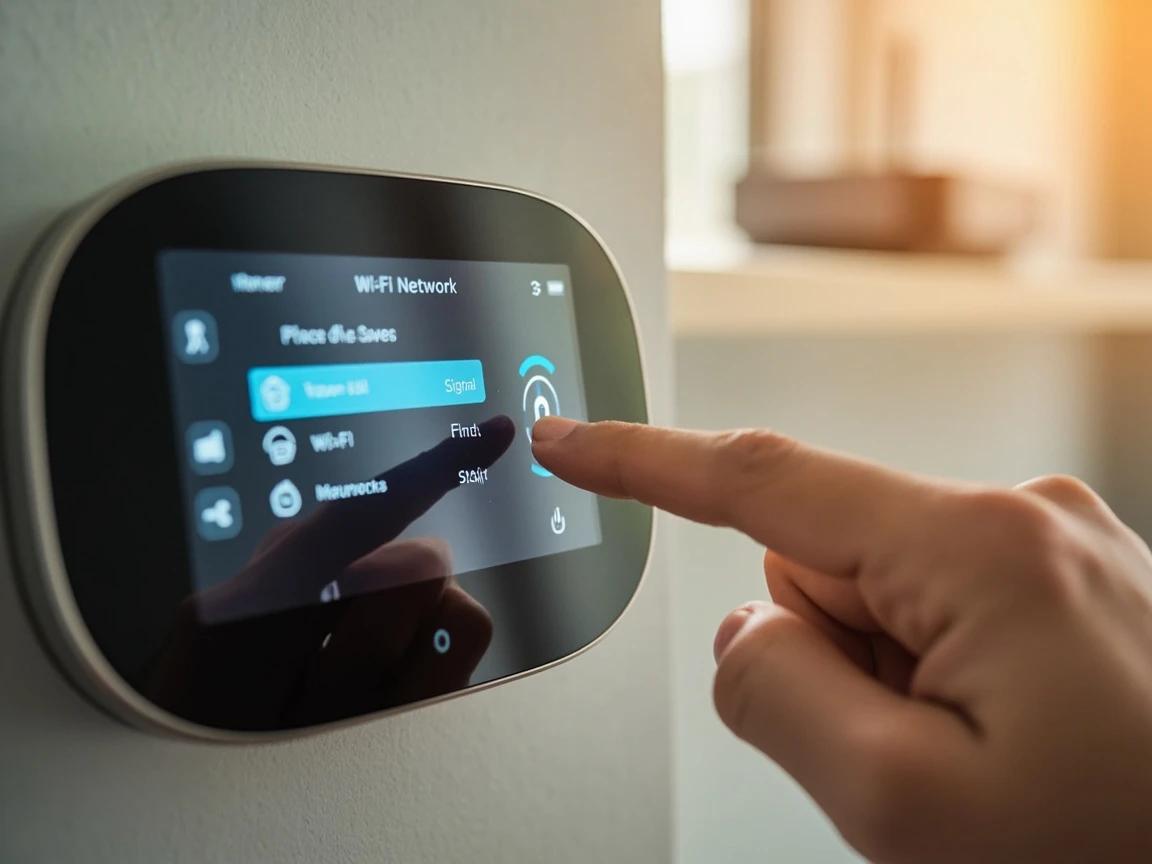
Most smart thermostats only connect to 2.4 GHz Wi-Fi networks, not 5 GHz. If your router uses a combined network name, you may need to temporarily split the bands in your router settings to complete the connection.
Configure Your HVAC System Settings
In the app, go to Settings → Equipment or System Setup. Confirm that the thermostat correctly identifies your system type — central air, heat pump, radiant heat, forced air, or dual fuel. Set the fan mode to "Auto" rather than "On" to save energy (running the fan continuously can add $50+ per year to your electric bill). If you have a heat pump, enable the "Auxiliary/Emergency Heat" lockout temperature so the expensive backup strips only kick in below a set outdoor temperature (typically 35°F). These equipment settings affect every schedule you create, so getting them right now prevents comfort issues later.
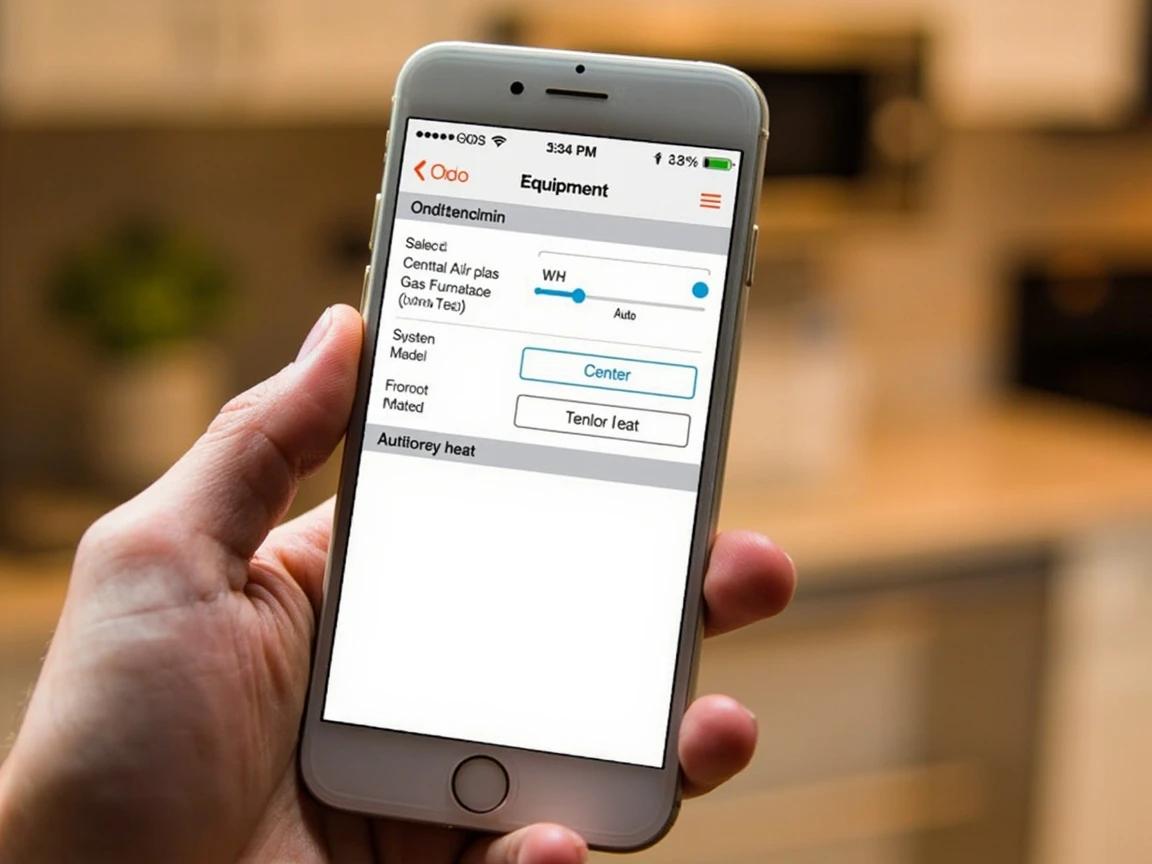
If you're unsure of your system type, look at your indoor unit: a furnace has a visible flame or burner area, a heat pump has no flame and uses an outdoor compressor year-round, and a dual-fuel system has both. Your thermostat's wiring (visible during installation) also reveals the system type — "W" wires indicate conventional heat, "O/B" wires indicate a heat pump.
Map Out Your Household Schedule
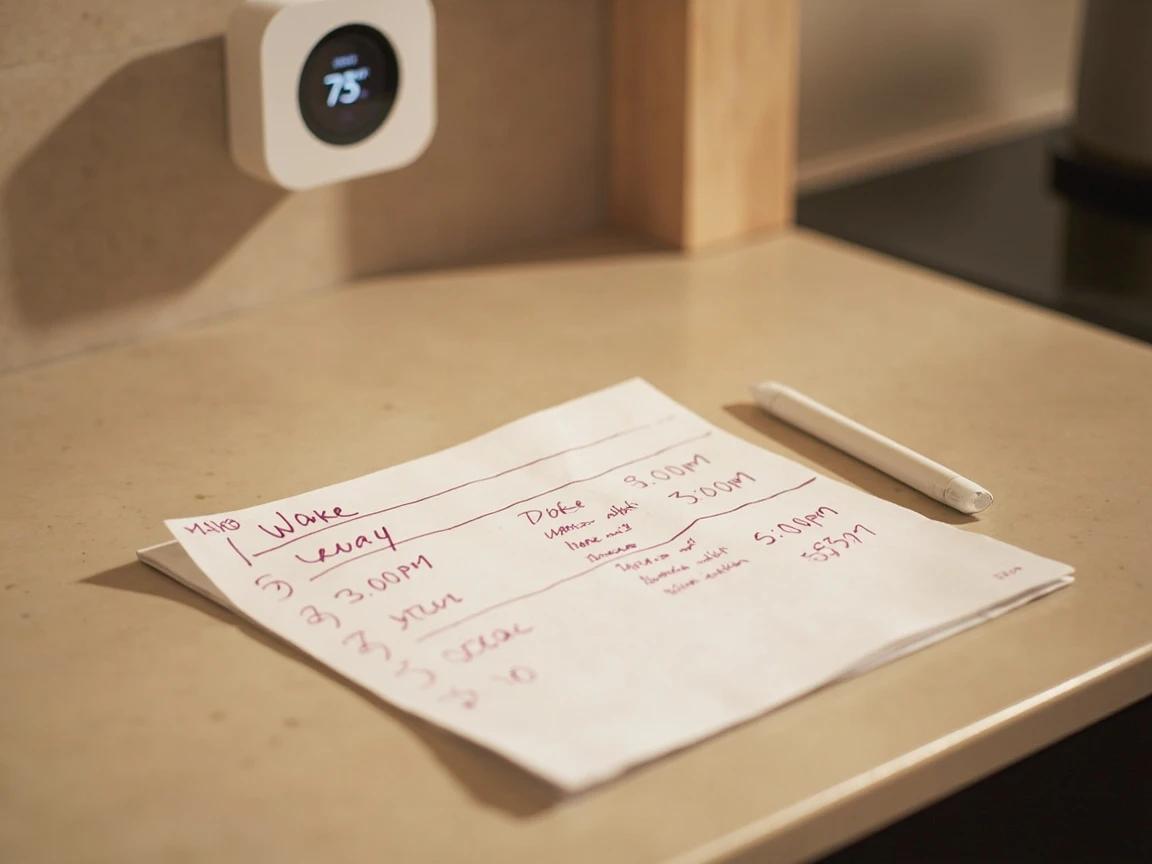
Before touching the schedule settings, write down your household's typical weekly routine on paper or in a notes app. Record four key transition times for weekdays and weekends: when the first person wakes up, when the last person leaves the house, when the first person returns home, and when the last person goes to bed. These four periods map directly to the thermostat's schedule slots — typically called "Wake," "Away," "Home," and "Sleep." Having these times written down before you start programming prevents the back-and-forth guessing that leads to a messy, inefficient schedule.
Create Your Temperature Schedule
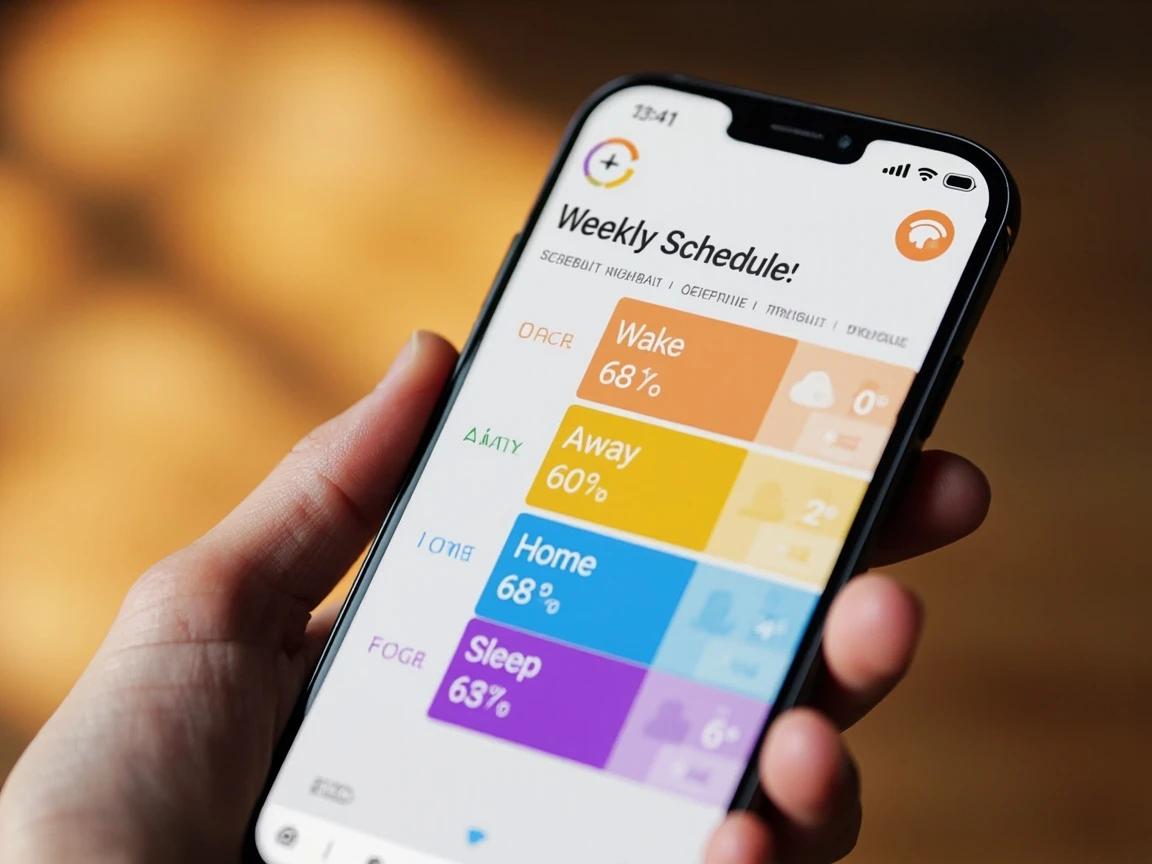
In the app, navigate to Schedule or Programming. Select weekdays first and set your four temperature periods. The Department of Energy recommends: 68°F when home and awake in winter (78°F in summer for cooling), and 7-10 degrees lower (winter) or higher (summer) when sleeping or away. For example, a winter weekday might look like: Wake at 6:30 AM → 68°F, Away at 8:00 AM → 60°F, Home at 5:00 PM → 68°F, Sleep at 10:00 PM → 62°F. Set the thermostat to begin warming or cooling 30 minutes before each transition so the house reaches target temperature right when you need it. Repeat for weekends with adjusted times.
Start conservative — set the away temperature only 5 degrees below your comfort level for the first week. If nobody complains about the house being too cold or too warm when they return, increase the setback by another 2-3 degrees. Gradual adjustment finds the sweet spot without making anyone miserable.
Enable Geofencing and Smart Features
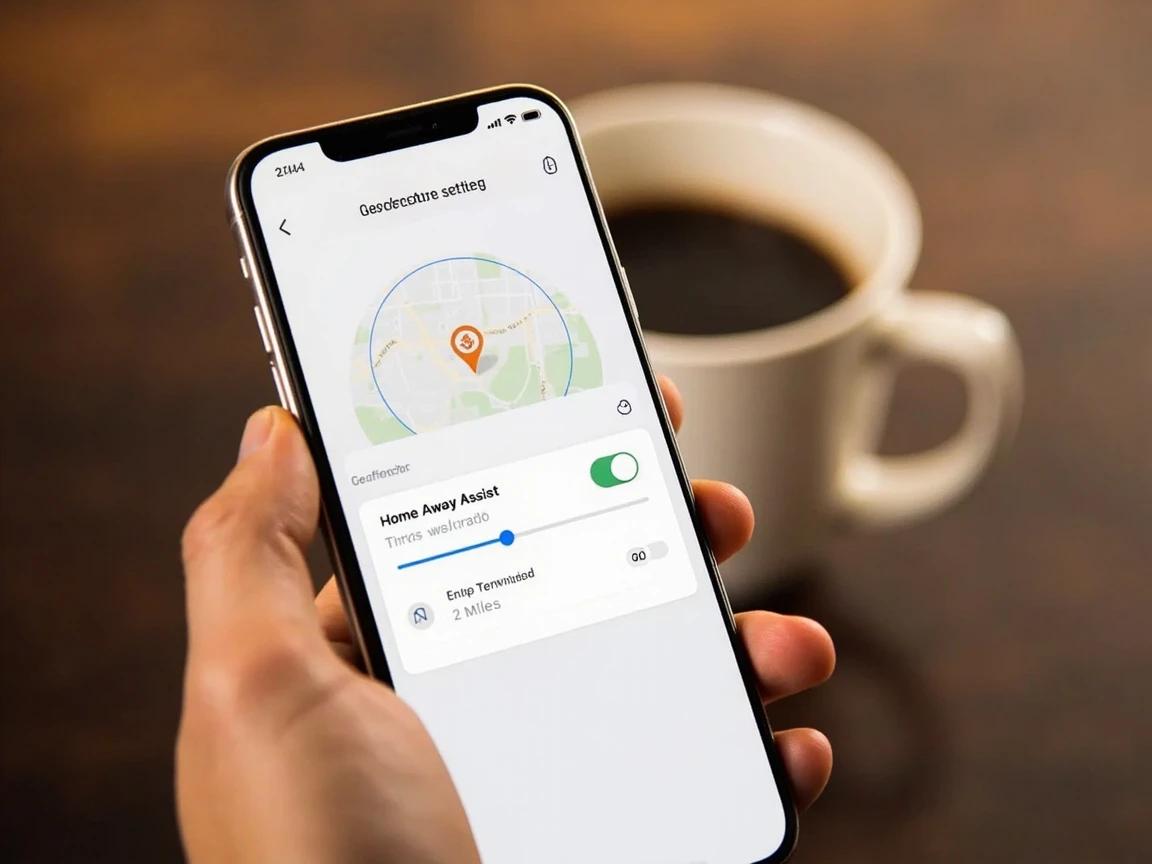
Most smart thermostats offer location-based features that use your phone's GPS to detect when everyone leaves or arrives. In the app, go to Settings → Home/Away or Geofencing and enable it. Set the geofence radius to about 2-3 miles so the thermostat starts pre-heating or pre-cooling before you walk in the door. Also enable "Eco Mode" or "Energy Savings" if available — this automatically adjusts temperatures to save energy when the house is empty, overriding the fixed schedule when your phone's GPS confirms nobody is home. On Nest thermostats, enable "Home/Away Assist"; on ecobee, enable "Smart Home/Away" which uses built-in occupancy sensors.
For households where someone works from home unpredictably, geofencing is more valuable than a fixed schedule. It automatically keeps the house comfortable on WFH days without you manually overriding the "Away" setting every time.
Test Your Schedule Through One Full Cycle
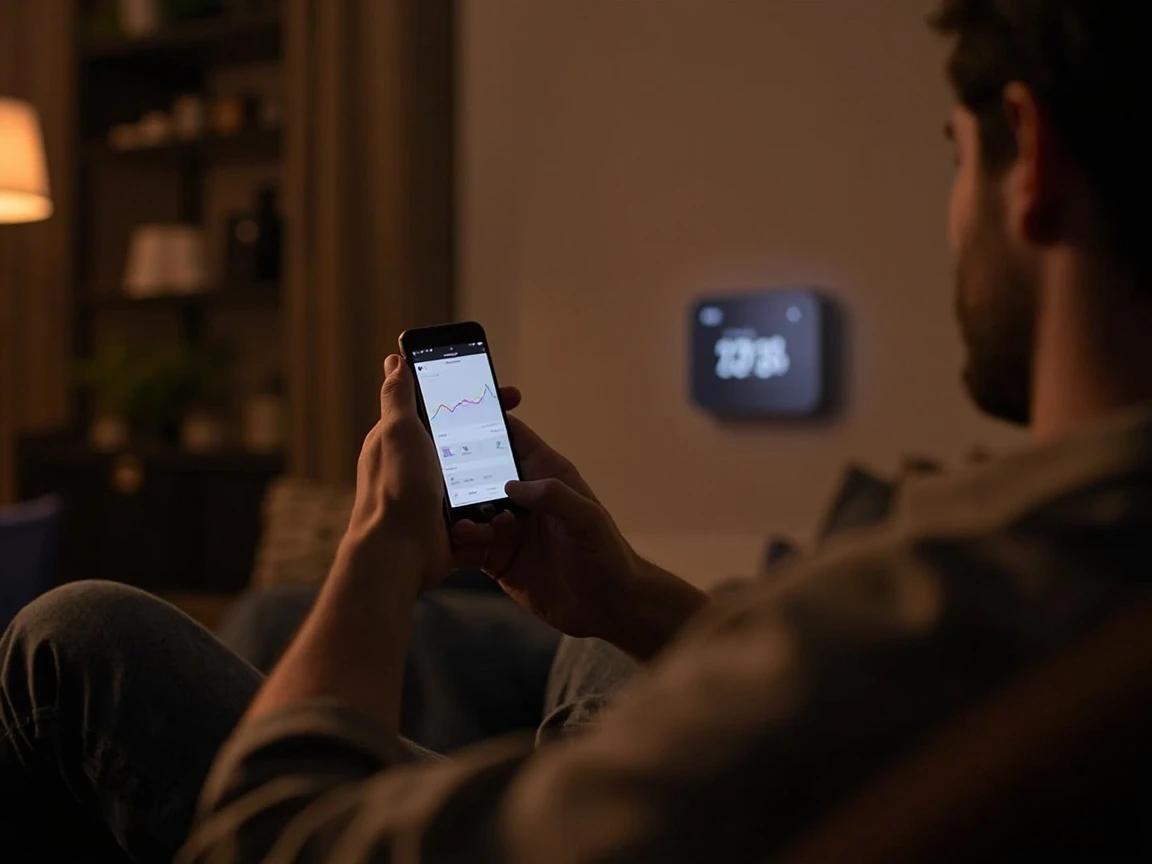
Let the schedule run for a full 24-hour cycle without making manual overrides. Check the thermostat at each transition point — does it start warming before you wake up? Does it drop to the away temperature after everyone leaves? Does it recover to the comfort temperature before you get home? Most smart thermostats show a timeline or history view in the app that displays exactly when the system turned on and off, what temperature it reached, and how long each cycle ran. Review this history the next morning to confirm the schedule is working as intended. If the house feels too cold when you wake up, move the "Wake" start time 15-30 minutes earlier rather than raising the temperature.
Review Energy Reports and Fine-Tune
After one to two weeks, open the app's Energy or Usage section. Most smart thermostats provide monthly energy reports showing how many hours your system ran, estimated energy usage, and comparisons to previous periods. Look for patterns: if the system runs heavily during "Away" periods, your setback temperature may not be aggressive enough. If it runs for long stretches right before "Home" transitions, it is working hard to recover — try a smaller setback or an earlier start time. Adjust by 1-2 degrees at a time and give each change a full week before evaluating. The goal is the widest temperature gap between home and away that still feels comfortable when you walk in the door.
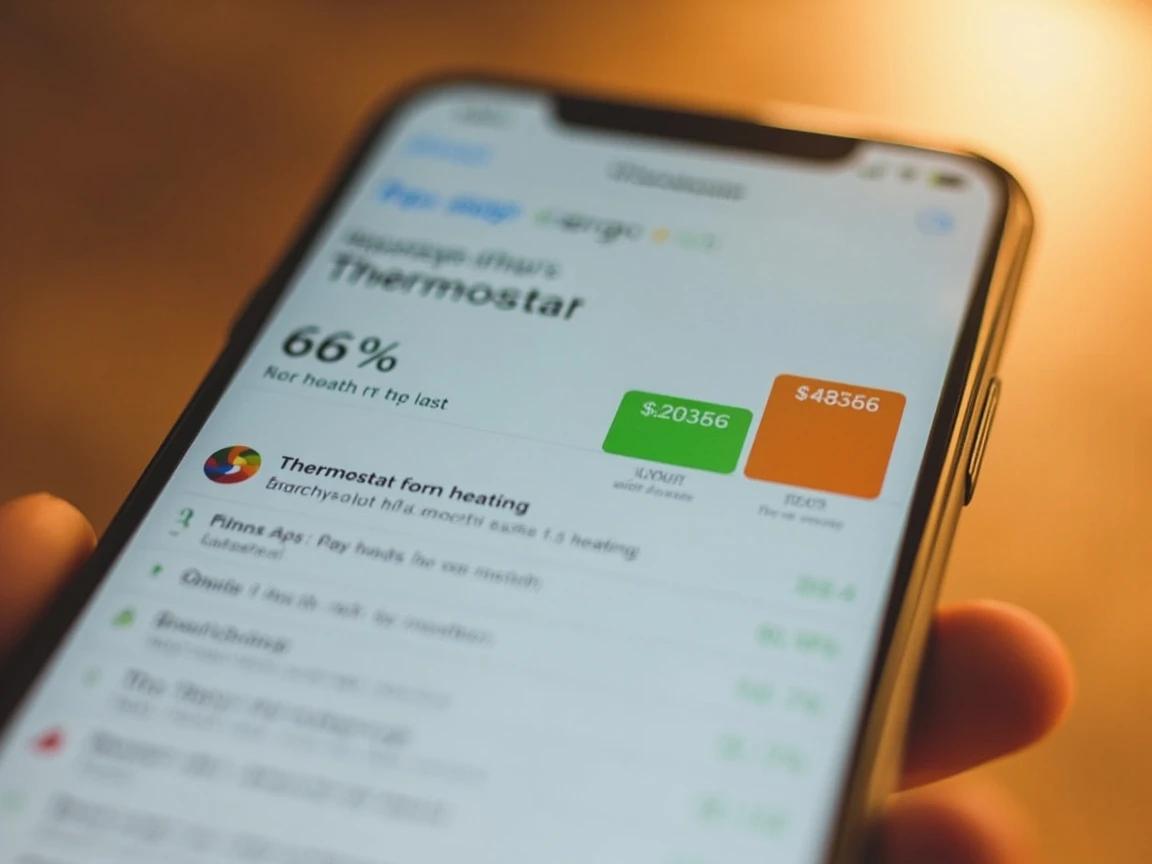
Set a calendar reminder to review your thermostat schedule at the start of each season (spring and fall). Swap between heating and cooling schedules, and adjust setback temperatures — summer away temperatures can be set higher (85°F) than winter away temperatures (60°F) since cooling is typically more expensive than heating.
Frequently Asked Questions
How long does it take to program a smart thermostat?
+
This project typically takes about 45 min. The guide includes 8 steps with detailed instructions for each.
What tools do I need?
+
You will need: Smartphone or tablet (iOS or Android), Home Wi-Fi network name and password, Thermostat manufacturer's app (Nest, ecobee, Honeywell Home, Sensi, etc.). Materials include: Smart thermostat (already installed and powered on — this guide covers programming, not installation), Your household's weekly schedule written down (wake, leave, return, and sleep times for weekdays and weekends).
Is this a good project for beginners?
+
Yes! This is rated as an easy project that most homeowners can complete with basic tools and no prior experience.
Sources & further reading
- Programmable Thermostats — U.S. Department of Energy
- Smart Thermostats — ENERGY STAR
More HVAC Guides
View all → Easy45 min
How to Replace a Thermostat (Non-Smart)
A faulty or outdated thermostat can cause uneven temperatures and inflate your energy bill by 10-20%. Swapping it for a new programmable or basic digital thermostat is a 30-minute job that requires only a screwdriver and costs $20-50 for the part. This guide walks you through safely disconnecting the old unit, labeling wires, mounting the new thermostat, and verifying your HVAC system responds correctly.
 Easy45 min
How to Install a Window AC Unit
A window air conditioner can cool a room for a fraction of the cost of central AC — units start at $150 and installation takes about 30 minutes with no special tools. But a poorly installed unit wastes energy, leaks water inside, or worse, falls out the window. This guide walks you through measuring your window, positioning and securing the unit, sealing gaps for maximum efficiency, and testing the drainage so you stay cool all summer without surprises.
 Medium10 hrs
How to Insulate an Attic
Adding attic insulation is the highest-payback weatherization project in most homes — but the step that actually saves money is the one DIYers skip: air-sealing the leaks before any insulation goes down. This guide does it in the right order — seal the penetrations and hatch, add baffles so you don't smother the soffit vents, keep insulation safely clear of recessed lights and the flue, then build the floor up to your climate zone's R-value target with batts or blown-in. Budget roughly $1 to $2 per square foot in materials and a weekend.
You Might Also Like
 Easy25 min
Best Deck Stain: Transparent vs Semi vs Solid
There is no "best" deck stain — there is the right stain for your sun exposure, wood condition, and how often you want to redo the job. Transparent stains last 1-2 years but let the natural grain show. Solid stains last 4-7 years but look like paint. This guide walks the four opacity levels and the oil-vs-water choice so you pick the one that matches your deck and your tolerance for re-staining.
 Easy30 min
How to Fix a Dripping Faucet
A dripping faucet wastes more than 3,000 gallons of water per year and can add $20 or more to your monthly water bill. The fix is almost always a worn cartridge, washer, or O-ring — parts that cost under $10 and take 20-30 minutes to replace with basic tools.
 Hard8 hrs
How to Paint Kitchen Cabinets
A professional cabinet refinish costs $3,000-8,000, but painting them yourself with the right prep and materials delivers the same transformation for under $200 in a long weekend. The secret is thorough degreasing, a bonding primer, and thin coats with proper dry time between each — skip any of those and the paint will chip within months. This guide walks through the full process from door removal and labeling to final reassembly, covering both brush and roller techniques for a smooth, factory-like finish.