How to Install a Smart Thermostat
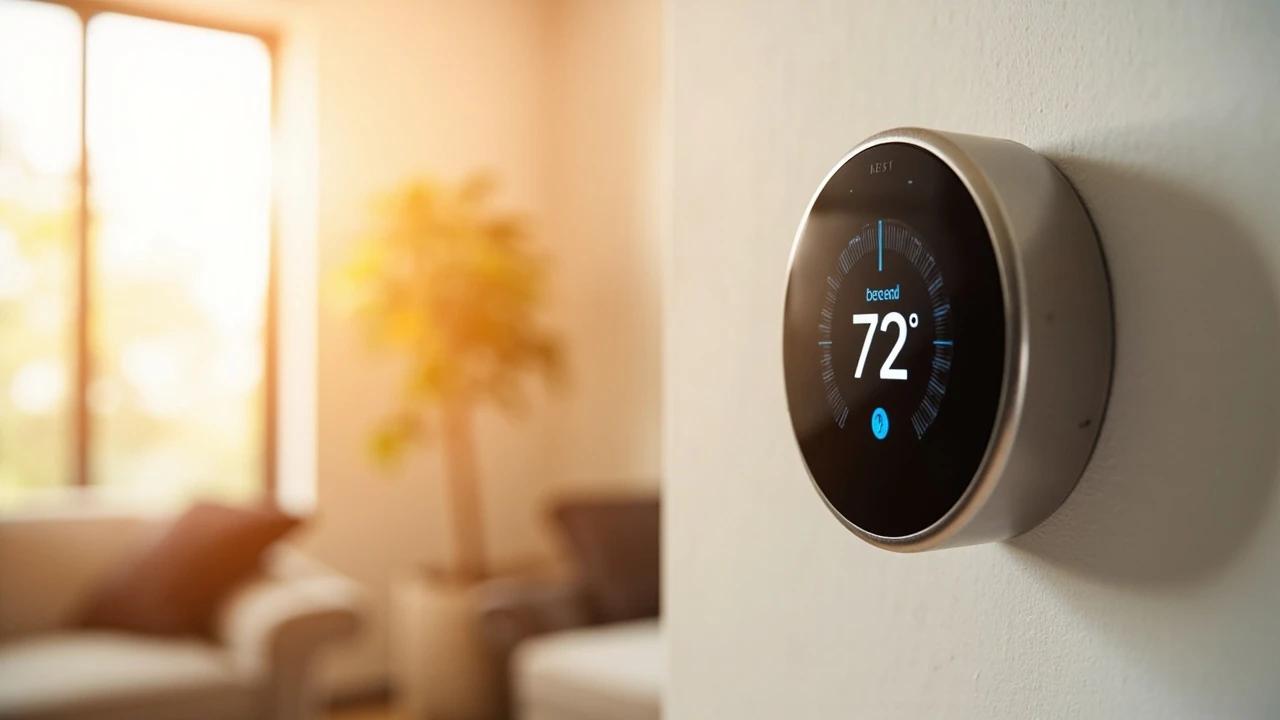

A smart thermostat is one of the highest-ROI upgrades you can make to your home — it learns your schedule, adjusts automatically when you're away, and typically saves about 8% on heating and cooling bills — the figure ENERGY STAR verifies from real-home data, roughly $50 a year — so the $120-250 device usually pays for itself within a few years. If your old thermostat has labeled wires behind it, the swap takes about 30-45 minutes with nothing more than a screwdriver and your phone. This guide covers checking compatibility, labeling wires, mounting the new base, connecting everything, and walking through the app setup so your system is running smart the same day.
What You'll Need
🛠 Tools
📦 Materials
Safety First
- •Always turn off the HVAC system at the breaker before disconnecting any thermostat wires — the wires carry 24V AC from the furnace transformer, which won't kill you but can damage the new thermostat's circuit board if wires short together.
- •If you find high-voltage wires (thick wires, 120V or 240V) behind your thermostat instead of thin low-voltage wires, stop — you have a line-voltage system that is not compatible with standard smart thermostats. Call an HVAC technician.
Step-by-Step Instructions
Check Compatibility Before You Buy
Before purchasing a smart thermostat, pull the cover off your existing thermostat and count the wires connected to the terminals. Most homes have 4-5 thin, color-coded wires (typically R, W, Y, G, and sometimes C). Take a photo of the wiring and use the manufacturer's online compatibility checker — Nest, Ecobee, and Honeywell all have free tools on their websites where you enter which terminal letters have wires. The checker will tell you if your system is compatible and whether you need a C-wire adapter. Systems with only 2 wires (common in older heating-only setups) are generally not compatible with most smart thermostats.
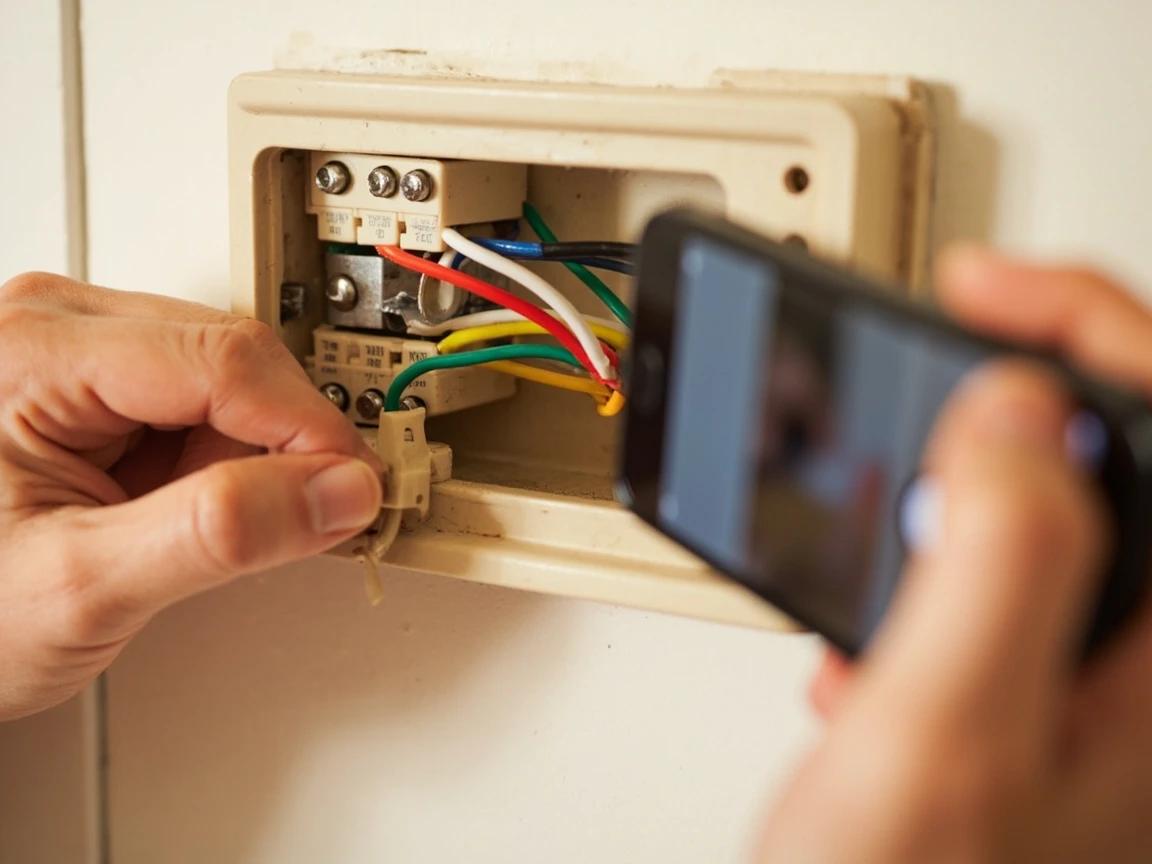
The single most important wire is the C-wire (common) — it provides the 24V power return that keeps the thermostat connected to Wi-Fi. C-wire color is not standardized, so don't trust the color; check the terminal letter on the old thermostat. The C-wire is often blue but can also be black, brown, or other colors. If you have one, installation is straightforward. If you don't, buy a thermostat that includes a C-wire adapter (Ecobee includes one in the box).
Turn Off Power to the HVAC System
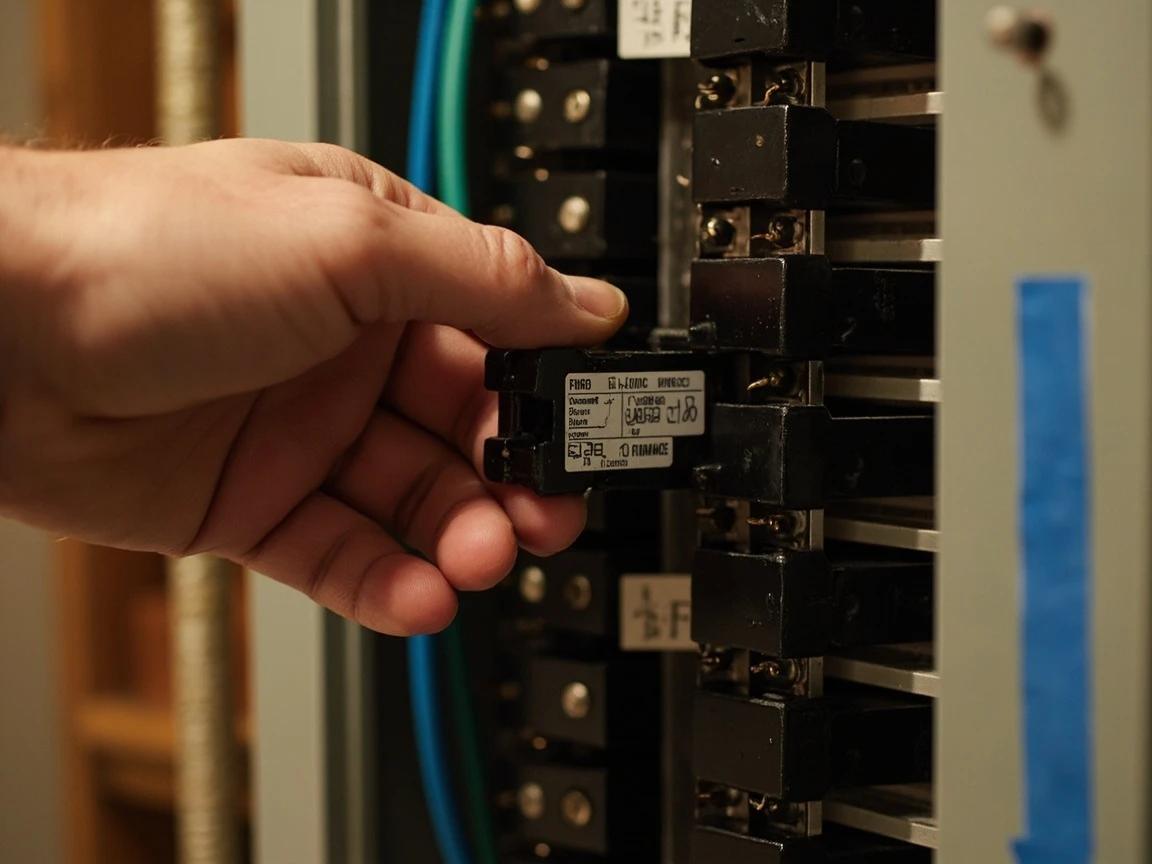
Go to your electrical panel and flip off the breaker labeled "Furnace," "Air Handler," "HVAC," or "Heat Pump." If the labels are unclear, turn on your heating or cooling, then flip breakers until the system stops running. Verify power is off by checking that the existing thermostat display goes dark. Use a non-contact voltage tester on the wires behind the thermostat for extra safety. Tape a note over the breaker so nobody turns it back on while you're working.
Remove the Old Thermostat Faceplate
Pull the faceplate or display of your old thermostat straight off the wall — most snap off or release with a small tab at the bottom. This exposes the mounting plate and the wire terminals behind it. Do not disconnect any wires yet. Take a clear, well-lit photo of the wiring with your phone showing which color wire goes to which terminal letter (R, W, Y, G, C, etc.). This photo is your insurance policy if you get confused later.
Label Every Wire Before Disconnecting
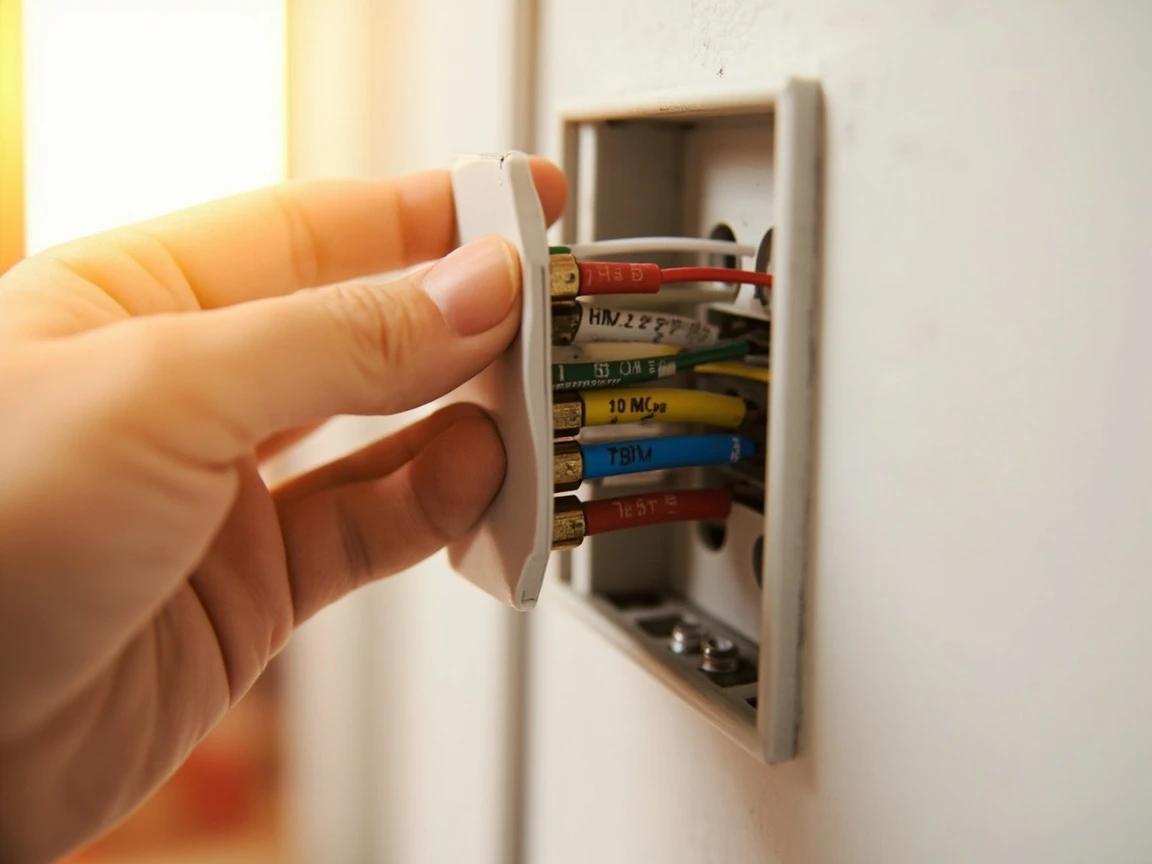
Using the wire labels included with your new thermostat (small stickers marked R, W, Y, G, C, etc.), wrap the matching label around each wire before you disconnect it from the old terminal. Match the label to the terminal letter the wire is currently connected to — not the wire color, since wire colors are not standardized across HVAC installations. For example, if a white wire is connected to the "W" terminal, label it "W." If a blue wire is connected to the "Y" terminal, label it "Y." Once every wire is labeled, loosen the terminal screws and gently pull each wire free.
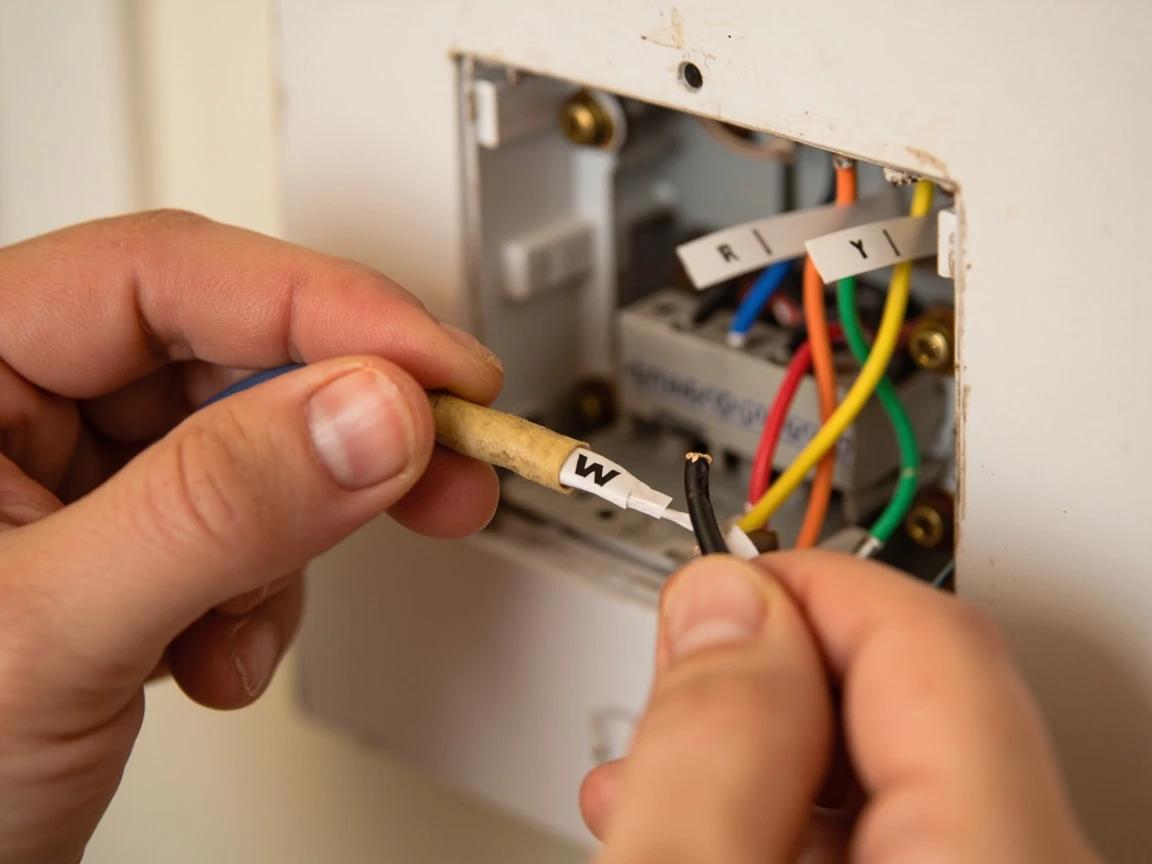
Never trust wire colors alone — a "red" wire might be connected to the G terminal in your system. Always label by terminal letter, not color.
Remove the Old Mounting Plate
Unscrew the old thermostat's mounting plate from the wall using a Phillips screwdriver. Pull the plate away carefully, guiding the labeled wires through the center opening. If the hole in the wall is large or messy, the new thermostat's trim plate (included with most smart thermostats) will cover it. Wrap the wire bundle loosely with painter's tape to prevent the wires from falling back into the wall cavity — this is especially important if the hole is larger than the wire bundle.
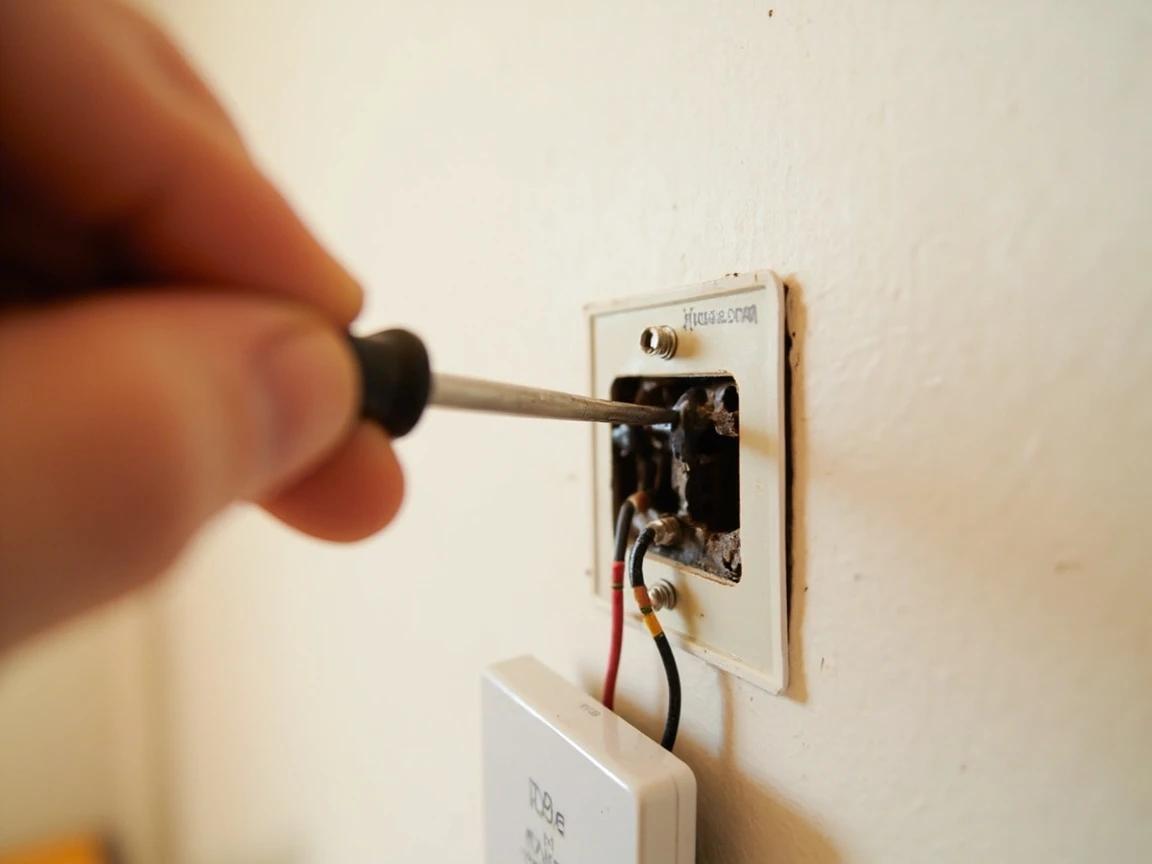
Wrap the wire bundle with a small piece of painter's tape to keep them from slipping back into the wall while you mount the new plate.
Mount the New Thermostat Base Plate
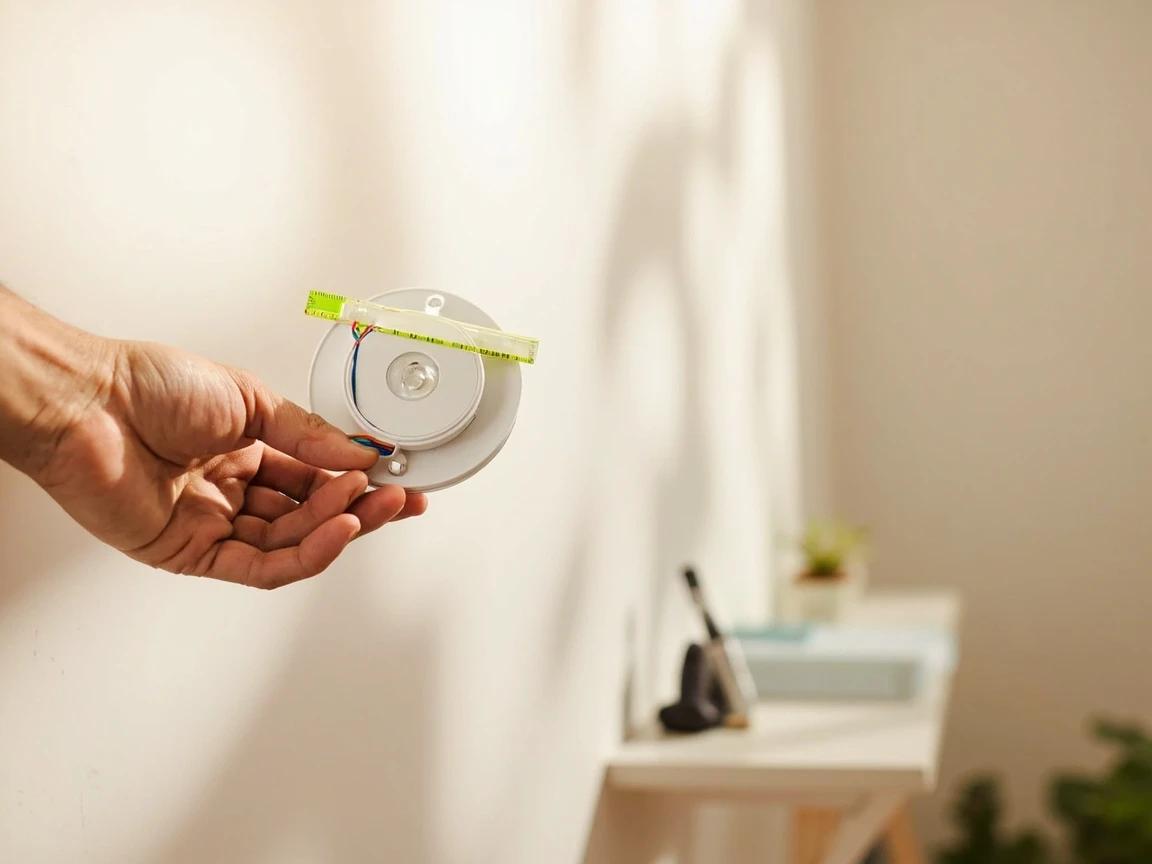
Thread the labeled wires through the center opening of the new thermostat's base plate and hold it against the wall. Use the built-in bubble level (most smart thermostat plates have one) or your own small level to get it perfectly straight — a crooked thermostat is surprisingly noticeable. Mark the screw holes with a pencil, drill pilot holes if needed (drywall anchors are usually included), and screw the plate firmly to the wall. Make sure it sits flat with no wobble.
Connect the Wires to the New Terminals
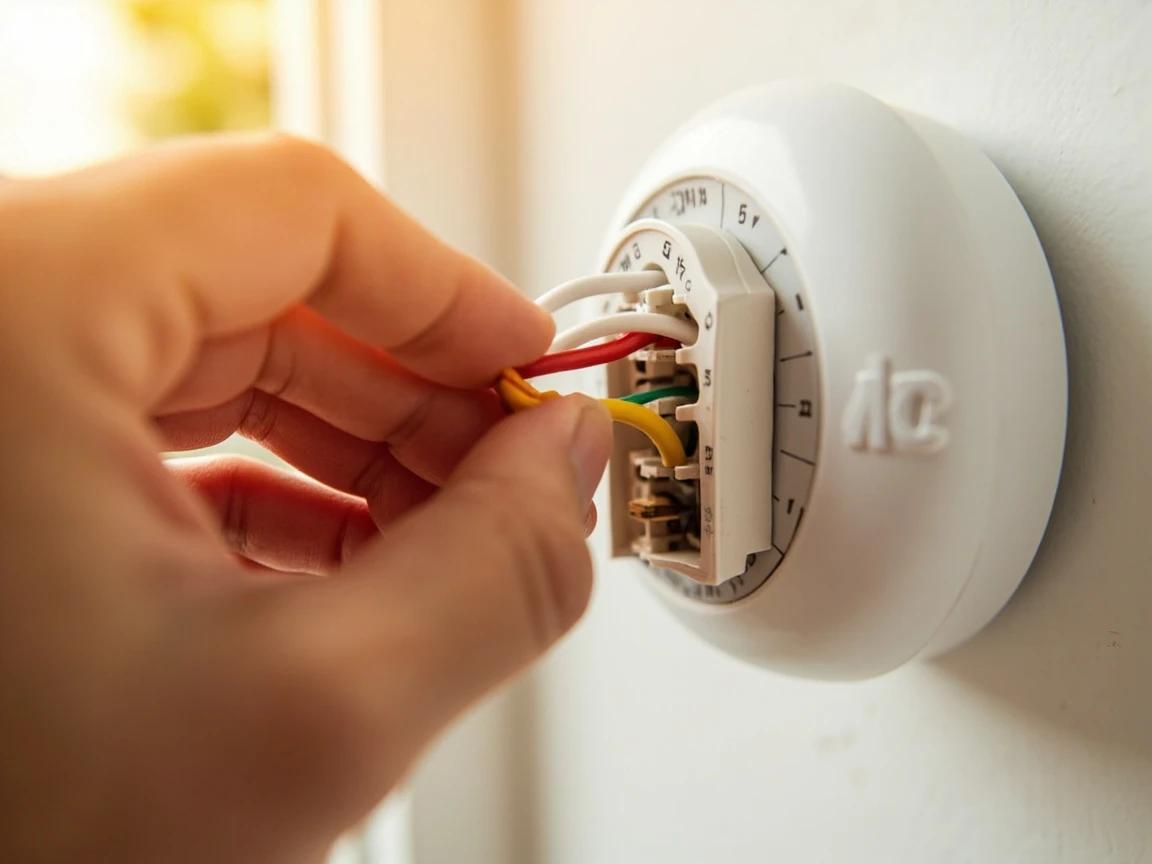
Push each labeled wire into its matching terminal on the new base plate — match the label letter to the terminal letter printed on the plate. Most smart thermostats use push-in connectors: strip a quarter inch of insulation if needed, then push the bare copper firmly into the terminal hole until it clicks and holds. Tug gently to confirm each wire is secure. If your thermostat has screw terminals instead, loosen the screw, insert the wire, and tighten. Double-check every connection against your photo from Step 3 — one misplaced wire can prevent the system from working or damage the thermostat.
Attach the Display and Restore Power
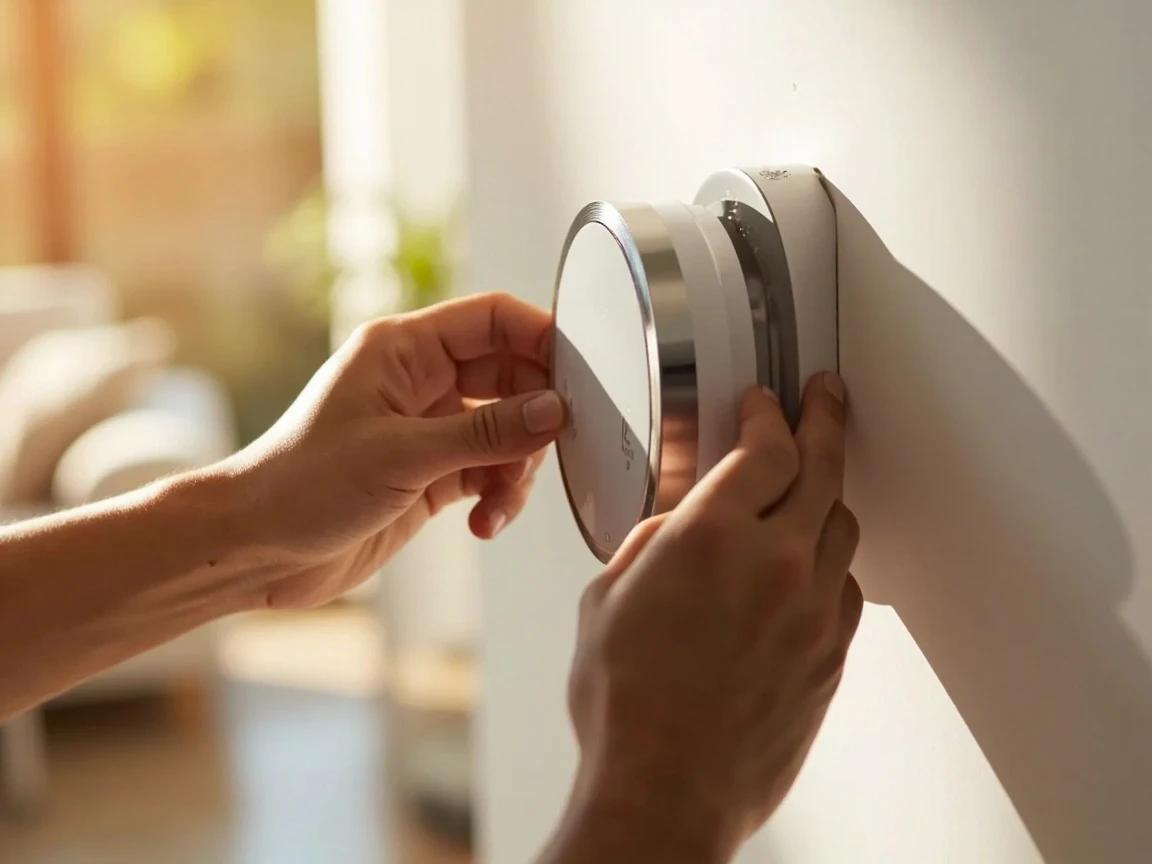
Align the thermostat display unit with the base plate and press it on firmly until it snaps into place — you'll hear or feel a click. Go back to the electrical panel and flip the HVAC breaker back on. The thermostat should power up within a few seconds and display a welcome or setup screen. If the screen stays dark, check that the breaker is on and that the R wire is seated firmly in its terminal — the R wire provides the 24V power that runs the thermostat.
Complete the App Setup and Test
Download the thermostat's app (Nest, Ecobee, Honeywell Home, or Alexa) on your phone and create an account. Follow the on-screen prompts on the thermostat to connect it to your Wi-Fi network, identify your HVAC system type, and configure heating and cooling preferences. Once setup is complete, run a quick test: set the thermostat to cool a few degrees below the current room temperature and verify the AC kicks on within 60 seconds, then switch to heat a few degrees above and confirm the furnace fires. Check that the fan runs when set to "fan only." If any mode doesn't respond, recheck the wire connections for that function.
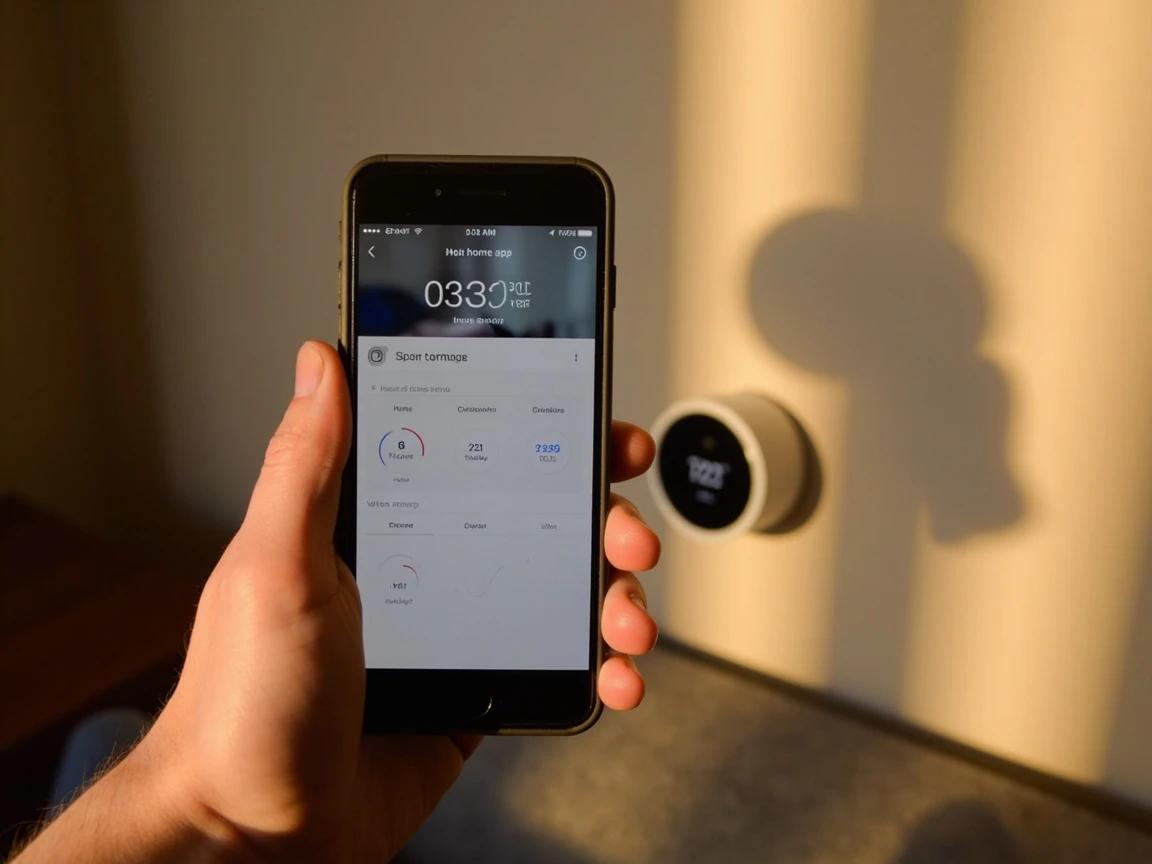
Set up a simple schedule right away — even a basic "away at 8 AM, home at 5 PM" saves energy from day one. You can fine-tune the learning features over the first week.
Frequently Asked Questions
Do I need a C-wire to install a smart thermostat?
+
Most modern smart thermostats work best with a C-wire (common wire) for continuous 24V power. If your existing wiring does not have one, many brands include a C-wire adapter in the box (Ecobee) or sell one separately. Some Nest models can operate without a C-wire using power stealing, but this is less reliable.
Will a smart thermostat work with my heat pump or dual-fuel system?
+
Most major smart thermostats (Nest, Ecobee, Honeywell, Amazon) support heat pumps, including dual-fuel setups with auxiliary heat. Check the manufacturer's online compatibility tool by entering your current thermostat's wire terminals before buying.
How much money does a smart thermostat actually save?
+
ENERGY STAR field data puts average savings at about 8% of heating and cooling costs — roughly $50/year, though homes with extreme temperature swings can save more. At that rate a $120-250 device usually pays for itself in about two to five years.
Can I install a smart thermostat myself?
+
Yes. The installation is a 30-45 minute swap with basic hand tools — a Phillips screwdriver, your phone, and a small level. The only prerequisite is confirming compatibility (count the wires on your existing thermostat) and turning off the HVAC breaker before disconnecting anything.
Sources & further reading
- Smart Thermostats — ENERGY STAR
- Smart Thermostats FAQs — ENERGY STAR
More HVAC Guides
View all →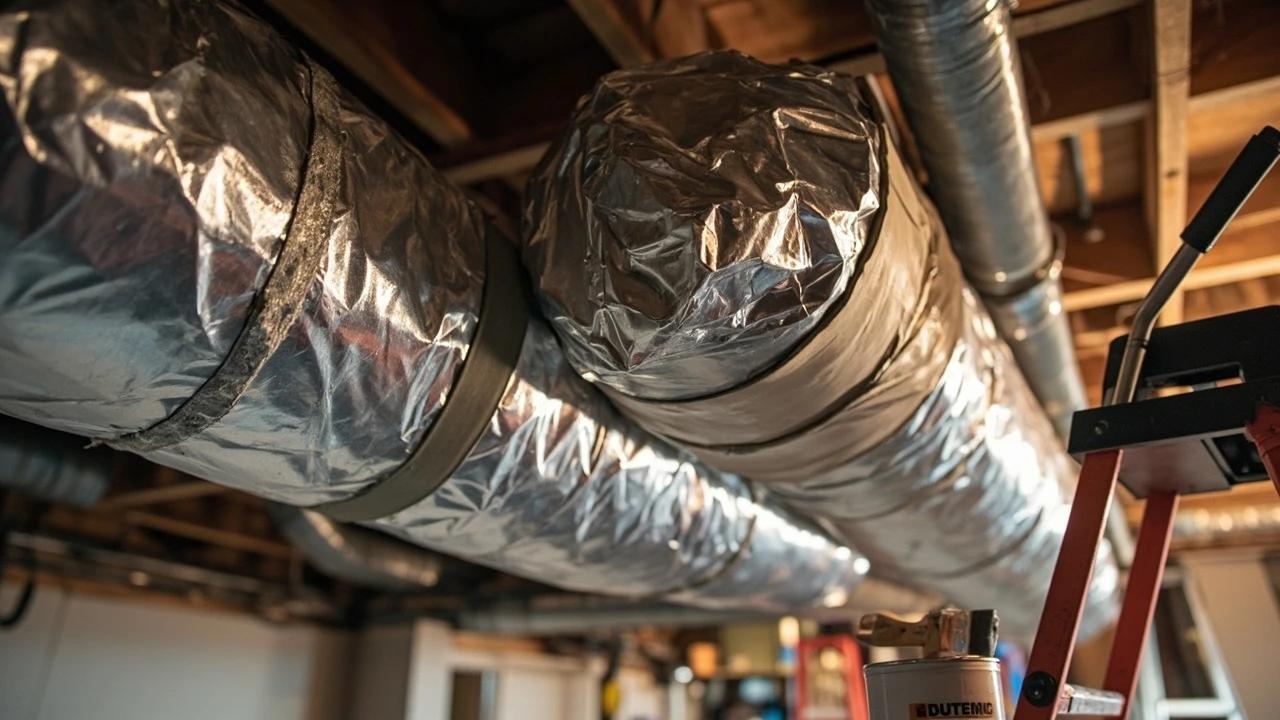 Medium4 hrs
How to Seal and Insulate Ductwork
Leaky, uninsulated ducts in crawlspaces, basements, and attics leak 20-30% of your heated and cooled air before it ever reaches a register — that is money pouring out of joints and seams every time the system runs. Sealing leaks with mastic and wrapping ducts in R-8 foil-faced insulation is a weekend project that costs $80-150 in materials and typically pays itself back in a single heating or cooling season through lower energy bills.
 Medium45 min
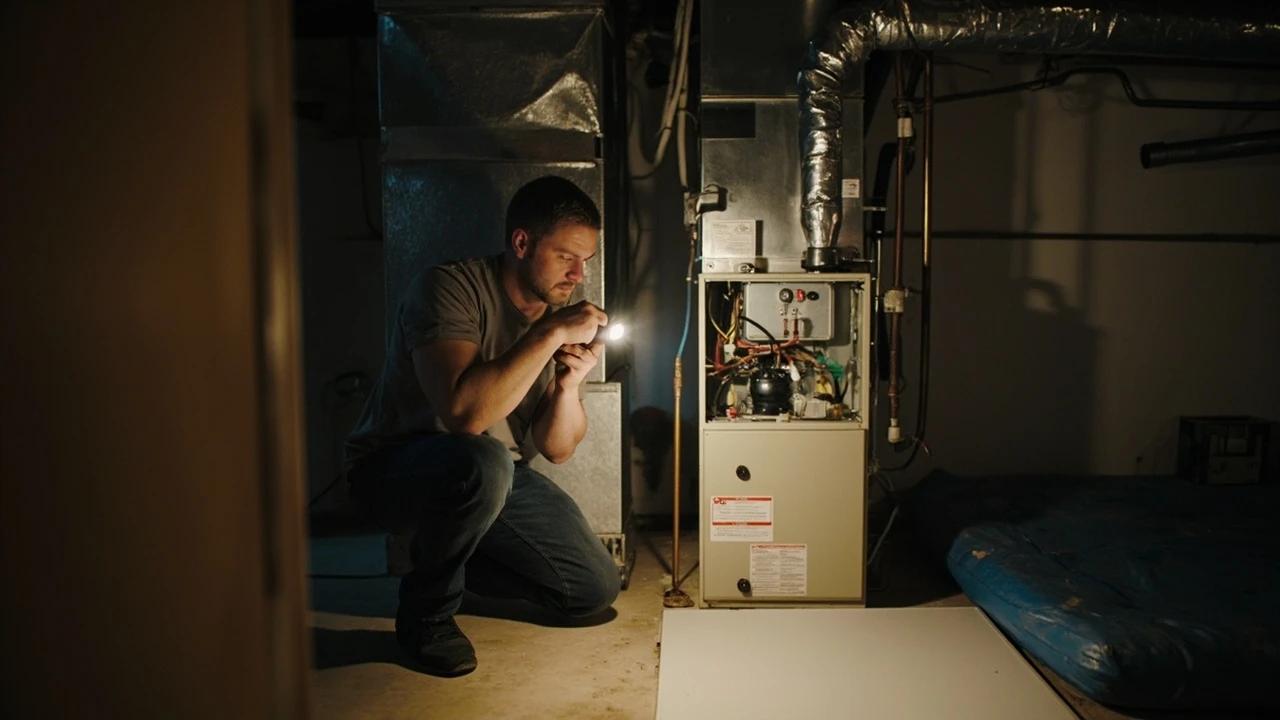
How to Troubleshoot a Furnace That Won't Start
When a gas furnace won't fire, the cause is usually something simple and free to fix — a thermostat set wrong, a flipped power switch, a filter clogged solid, or a sooted flame sensor — not a dead furnace. This guide walks the checks in order of likelihood, starting with gas safety, so you can get the heat back in about 45 minutes without a $150 service call. It also draws a clear line at the repairs that are genuinely a pro's job.
 Easy45 min
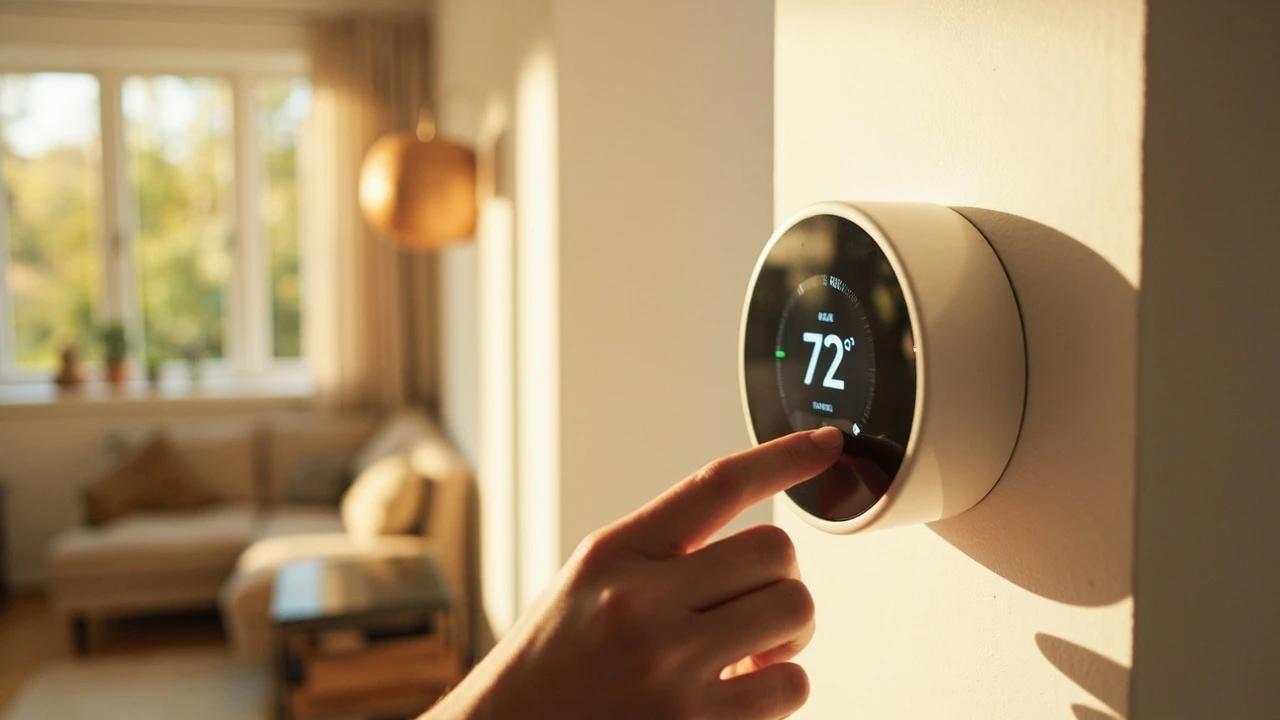
How to Program a Smart Thermostat
A properly programmed smart thermostat can cut your heating and cooling bills by 8-10% — roughly $50-150 per year — without sacrificing comfort. Most homeowners never get past the default settings, leaving serious savings on the table. This guide walks you through the full setup: Wi-Fi connection, schedule creation, and energy-saving features like geofencing and eco mode.
You Might Also Like
 Medium1 hr
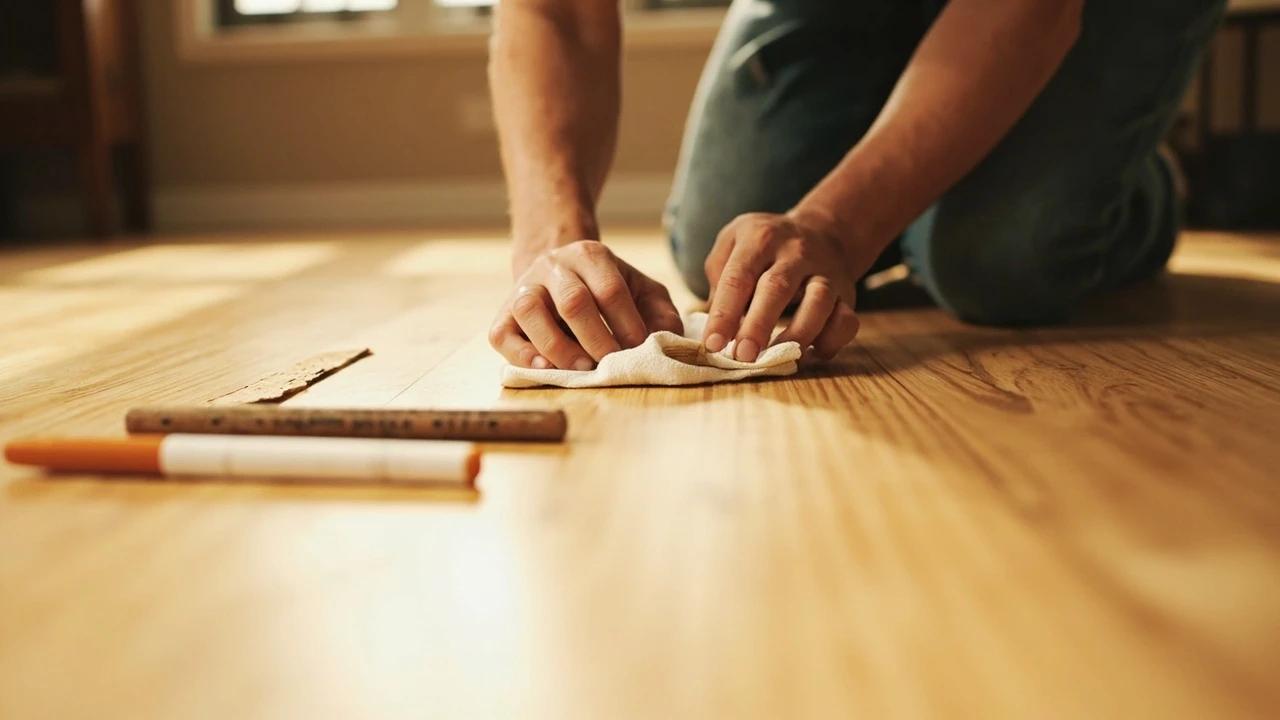
How to Repair Scratches in a Hardwood Floor
Scratched hardwood almost never means refinishing the whole floor. This guide shows you how to match the fix to the damage — a touch-up marker for finish-level scratches, a wax fill stick for shallow ones, and stainable wood filler with stain and polyurethane for deep gouges — all for under $40 in supplies and about an hour of work.
 Easy25 min
Best Deck Stain: Transparent vs Semi vs Solid
There is no "best" deck stain — there is the right stain for your sun exposure, wood condition, and how often you want to redo the job. Transparent stains last 1-2 years but let the natural grain show. Solid stains last 4-7 years but look like paint. This guide walks the four opacity levels and the oil-vs-water choice so you pick the one that matches your deck and your tolerance for re-staining.
 Easy30 min
How to Fix a Dripping Faucet
A dripping faucet wastes more than 3,000 gallons of water per year and can add $20 or more to your monthly water bill. The fix is almost always a worn cartridge, washer, or O-ring — parts that cost under $10 and take 20-30 minutes to replace with basic tools.